What happens to your social media after you die? Crypto assets? Email account? If we care about who receives our physical belongings after we die, why not care about digital ones?
Kickbacks.ai promises developers a share of ad revenue while their coding assistants work. But the fine print reveals a far less generous bargain— one that may put their privacy, accounts, and even jobs at risk.
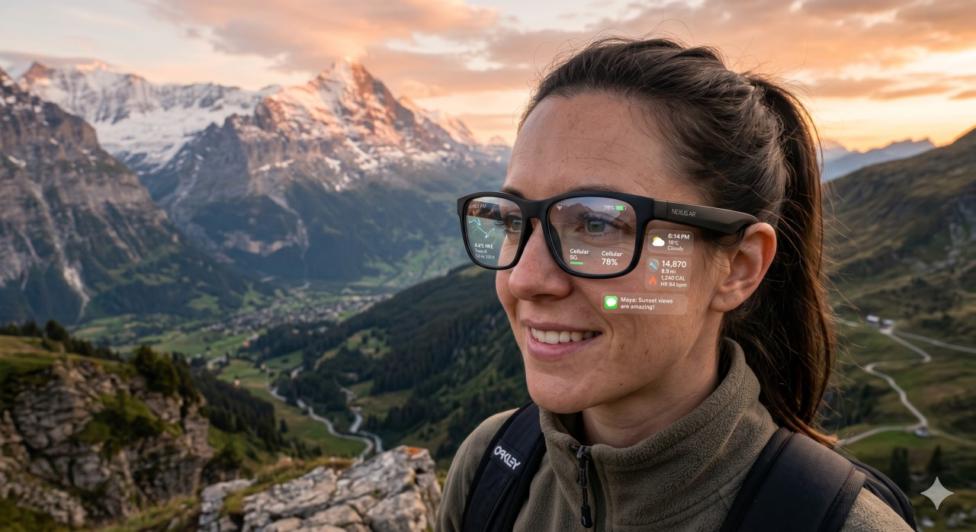
Meta AI glasses have revived concerns about covert recording and the erosion of consent in public spaces. The backlash points to a broader problem: what happens to privacy when cameras become almost indistinguishable from ordinary eyewear?
There are many things that we do so often that we don’t even think twice about how they negatively affect our privacy. We selected nine of them to cover in this TechTok.
Do you own location data if it is stored on some company’s servers? The Supreme Court of the U.S. might be able to give a definitive answer to that question very soon.
In an experiment gone viral, a person wearing smart glasses was able to find out extensive personal information about strangers just by glancing at them. How dangerous is this new tech?
Today we'll talk about Webloc system, a location-tracking system that collects data from millions of mobile phones through commercial data brokers, and sells them to intelligence actors
All done!
Something went wrong
Subscribe to our news
You’ve successfully subscribed to AdGuard news. Emails will be sent to ${subscribeSlotProps.email}
You can also subscribe using a different email address
Please try again. If it doesn’t help, please contact support
Be the first to get the latest news about online privacy and ad blocking, AdGuard product releases, upcoming sales, giveaways, and more
Invalid captcha
Captcha is required
Downloading AdGuard
To install AdGuard, click the file indicated by the arrow
Select "Open" and click "OK", then wait for the file to be downloaded. In the opened window, drag the AdGuard icon to the "Applications" folder. Thank you for choosing AdGuard!
Select "Open" and click "OK", then wait for the file to be downloaded. In the opened window, click "Install". Thank you for choosing AdGuard!
Install AdGuard on your mobile device
Installation
AdGuard for Android is available in the following app stores:
AdGuard can’t be published on Google Play. For more details, check out our blog. If you’re using Google Play, follow these instructions to manually install AdGuard for Android.
1. Allow downloading
If your browser displays a warning, allow downloading adguard.apk.
Installation permissions
If installations from your browser are not allowed, you’ll get a notification. In this notification, tap Settings → Allow from this source.
Note for Samsung users with One UI 6 (Android 14) and newer
On some Samsung devices, the Auto Blocker feature may prevent APK installations. To install the app:
Open your device settings.
Go to Security and privacy.
Scroll down and tap Auto Blocker.
Disable the setting.
You can re-enable this feature after the installation.
2. Install the app
In the pop-up dialog, tap Install.
3. Launch the app
Wait for the installation to complete and tap Open. All done!
Scan to download
Use any QR-code reader available on your device
Scan to download
Use any QR-code reader available on your device
Download an older AdGuard version?
This OS version isn’t supported. You can use an older version of AdGuard, but it won't receive updates
By downloading the program you accept the terms of the License agreement